

In our increasingly digital world, managing and manipulating files is a daily necessity. Whether you’re a content creator, a student, a professional, or simply someone who enjoys listening to music, understanding how to manage your files effectively can save you time, reduce frustration, and enhance productivity. Two common tasks that many people encounter are changing the extension of a file and converting media formats such as how to convert an ogg audio file to mp3. In this comprehensive guide, we’ll walk you through both concepts in a clear, friendly, and practical way—no advanced technical skills required.
Why File Conversion Matters
Every file has a format—typically represented by its extension, such as .docx, .png, .mp3, or .ogg. These extensions signal the type of data inside the file and dictate which programs can open them. Sometimes, you may need to change a file’s format to make it compatible with specific devices, applications, or platforms.
For example:

- A program might refuse to open a file because it doesn’t support the current extension.
- You might want to reduce the file size for easier sharing.
- You may need to ensure that a file works on mobile devices or older software.
Understanding how to convert or change file extensions empowers you to work smarter with your data and media.
What Does It Mean to Change a File Extension?
At its core, changing the extension of a file involves modifying the suffix at the end of a file name, such as changing file.txt to file.doc. The extension tells your computer what type of file it is dealing with and which applications can open it.
Changing an extension can be as simple as renaming the file, but in many cases, such as media files or documents, a proper conversion process is necessary to ensure the file’s contents remain usable.
If you need a quick and easy tool for this task, many people turn to online services that simplify the process, like changing the extension of a file.
This service helps you convert files without downloading software or navigating complicated menus. Simply upload the file you want to change, select the desired format, and download the converted version.

The Difference Between Renaming and Converting
It’s important to distinguish between renaming a file extension and converting the file format:
- Renaming the Extension
This is simply changing the letters after the period in the file name. For example, renaming song.ogg to song.mp3. However, this does not change the file’s internal structure—it only changes how the operating system interprets it. The result can be a file that won’t open or plays incorrectly. - Converting the File Format
Conversion alters the actual data within the file so that it conforms to the structure and encoding of the desired format. For example, converting audio data from .ogg format to .mp3 ensures the result plays properly on devices that support MP3.
For proper conversions, a dedicated file conversion tool or service is usually required.
Why Convert an OGG Audio File to MP3?
The .ogg file format is an open, patent-free audio format known for good sound quality. It’s popular among open-source enthusiasts and some streaming platforms. However, not all devices or applications support .ogg files. That’s where converting to .mp3 becomes valuable.
MP3 is one of the most widely supported audio formats across devices, platforms, and media players. Here are some reasons you might want to convert:
- Compatibility: MP3 playback is supported on almost every device, including phones, computers, car stereos, and portable players.
- Convenience: Many editing programs and audio applications support MP3 natively.
- Smaller File Size: MP3 files can be compressed at different bitrates, balancing quality and size.
If you have an .ogg file and want a universally compatible version, using an online converter makes this easy. Try converting your file using an online service like ogg audio file to mp3.
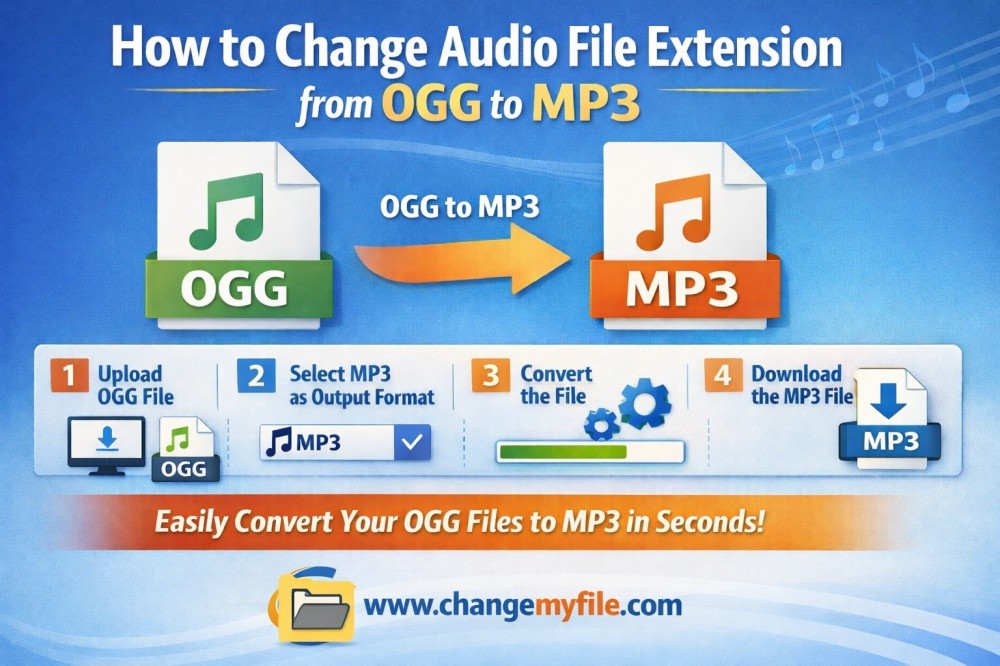
It’s accessible, fast, and requires no software installation. You upload your .ogg file, select MP3 as the output, and download the converted file.
Step-by-Step: How to Convert OGG to MP3
Here’s how you can convert an OGG audio file to an MP3 format using an online tool:
- Open the Conversion Website
Go to the chosen file conversion site (for example, the link mentioned above). - Upload Your OGG File
Click on the “Upload” or “Choose File” button and select the .ogg file from your device. - Choose MP3 as Output Format
From the list of supported formats, select .mp3. - Start the Conversion
Hit the “Convert” button. The tool will process your file. - Download the Converted File
Once completed, download the MP3 file to your device.
This process typically takes only a few moments, depending on the file size and your internet connection.
Tips for Better Conversions
Here are a few helpful tips when converting files:
- Backup Your Original Files
Before converting, save a copy of the original file in case something goes wrong or the conversion quality isn’t what you expected. - Check Quality Settings
Some converters allow you to select bitrate or quality levels for MP3. Higher bitrates usually mean better audio quality but larger file size. - Beware of Copyrighted Content
Make sure you have the rights to convert and use audio files, especially if they are copyrighted. - Use Reputable Tools
Online converters vary in trustworthiness. Use services with good reputations and avoid sites that ask for unnecessary permissions.
How to Change File Extensions on Your Computer
While converting audio files often requires specialized tools, changing simple file extensions for compatibility can usually be done directly on your computer.
On Windows
- Open File Explorer.
- Click on the View tab.
- Check the box that says File name extensions.
- Right-click the file you want to change.
- Select Rename.
- Change the file extension (e.g. .txt to .md).
- Press Enter and confirm the change.
On macOS
- Open Finder.
- Select the file.
- Press Return to edit the name.
- Change the extension.
- Confirm when prompted.
Important Note
Remember: changing an extension manually does not convert the file’s internal data. It only changes the label. If the internal format does not match the new extension’s expectations, the file may fail to open. For actual conversions, use a reliable converter.
Common File Types and When You Might Need to Convert
Here’s a quick look at several common file categories and typical reasons for converting:
|
File Type |
Common Extension |
Why Convert? |
|
Audio |
.ogg, .mp3 |
Compatibility with devices and players |
|
Video |
.mkv, .mp4 |
Play on mobile devices or upload to platforms |
|
Documents |
.docx, .pdf |
Share read-only versions or ensure universal access |
|
Images |
.png, .jpg |
Reduce size or support older software |
Understanding these use cases helps you choose the right tools and formats for your needs.
Final Thoughts
File conversion might sound technical, but once you understand the basics, it’s a powerful tool in your digital toolkit. Whether you’re changing the extension of a file for better compatibility or converting media like an ogg audio file to mp3 for seamless playback, the right tools and knowledge make the process simple and efficient.
From adjusting audio files for your mobile device to preparing documents for sharing, mastering file formats enhances productivity and convenience. Don’t be intimidated by the terminology or unfamiliar formats—start with these steps, try online converters, and explore how easy it can be to take control of your digital files.
With these insights and practical steps, you’re well on your way to becoming confident with file management. Happy converting!





