

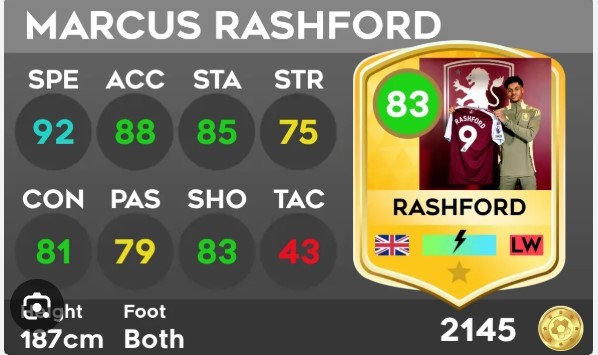
If you've spent any time in the Dream League Soccer community, you've probably come across custom player cards that look almost indistinguishable from the real thing. Sharp badges, accurate stats, custom kits—the works. Behind most of these creations is a tool called the DLS Card Creator.
Whether you're new to the game or a seasoned player looking to personalize your squad, understanding how to use DLS Card Creator can take your experience to a whole new level. This guide covers what the tool is, how it works, and how to get the most out of it.
What Is DLS Card Creator?
DLS Card Creator is a fan-made tool that allows Dream League Soccer players to design custom player cards. Instead of sticking with the default cards the game provides, players can tweak everything—from player names and stats to card design and imagery.
The tool is popular within the DLS community for a few reasons. It's accessible, it's relatively easy to use, and it produces results that look polished. Custom cards are often shared across social media platforms and fan forums, where creators show off their designs or offer card packs for others to download and use.
Key Features of DLS Card Creator

Custom Player Stats
At the core of DLS Card Creator is the ability to assign your own stats to any player. Speed, shooting, dribbling, passing, defending, physical—you control all of it. This makes the tool especially useful for creating fantasy cards, upgraded versions of real players, or completely fictional players.
Card Design Customization
You're not limited to one card style. DLS Card Creator typically offers a range of card templates inspired by popular football card designs—think gold cards, special editions, or event-specific designs. You can change colors, backgrounds, and card borders to match a specific aesthetic.
Player Image Upload
One of the standout features is the ability to upload a custom player image. This is what gives DLS cards that authentic, professional look. Players often source high-quality images of real footballers or use illustrated versions for a more stylized feel.
Club and League Badges
Adding club badges and league logos to your card adds another layer of realism. DLS Card Creator supports badge uploads, so you can accurately represent any club—official or fan-created.
How to Use DLS Card Creator
Using DLS Card Creator is straightforward, even if you're doing it for the first time. Here's a simple breakdown:
Step 1: Choose Your Card Template
Start by selecting a card template that fits the style you're going for. Most versions of the tool offer multiple options, ranging from standard cards to special edition designs.
Step 2: Enter Player Information
Fill in the player's name, position, nationality, and club. These details will appear on the finished card, so accuracy matters if you're going for a realistic look.
Step 3: Set the Stats
Assign values to each stat category. If you're creating a card based on a real player, you can reference their actual in-game or real-world stats for accuracy. For fantasy cards, this is where creativity takes over.
Step 4: Upload Images and Badges
Upload the player's image and any relevant badges. For best results, use images with a transparent background—this keeps the card looking clean and professional.
Step 5: Download and Share
Once you're happy with the design, download the card as an image file. From there, you can share it on social media, upload it to fan forums, or use it within the game if your version supports custom card imports.
Tips for Creating Great DLS Cards
Getting the mechanics right is one thing—creating a card that genuinely looks impressive takes a little more thought. A few tips that make a real difference:
- Use high-resolution images. Low-quality player photos are the quickest way to make a card look amateur. Take the time to find a sharp, well-lit image.
- Be consistent with your stat ratings. Cards where every stat is maxed out at 99 lose their appeal quickly. Realistic stat distributions make cards feel more credible.
- Match your color palette to the card style. A gold special edition card with mismatched colors looks off. Pay attention to how the player image, background, and badge colors work together.
- Save your work as you go. Some browser-based versions of DLS Card Creator don't autosave. Losing a nearly finished card to a browser refresh is frustrating.
Why the DLS Community Loves Custom Cards
Custom cards tap into something that goes beyond the game itself. They're a form of creative expression within a sport-obsessed community. Creators build reputations around the quality of their card designs. Some fan accounts on Instagram and YouTube are dedicated entirely to showcasing DLS card packs.
There's also a competitive element. Designing a card that earns praise from the community—or goes viral within DLS circles—carries real weight for dedicated fans. For many players, the card creation process is just as enjoyable as playing the game.
Common Mistakes to Avoid
Even experienced creators run into issues. A few common ones worth keeping in mind:
Skipping the background removal step. Player images with white or colored backgrounds look out of place on most card templates. Tools like remove.bg can handle this quickly before you upload.
Ignoring card proportions. If the player image is too large or too small relative to the card frame, the whole design feels imbalanced. Most card creators include guides or gridlines to help with alignment.
Overcomplicating the design. More elements don't always mean a better card. Clean, simple designs often outperform busy ones.
Make Your Squad Your Own
DLS Card Creator gives players a genuine way to put their stamp on the game. The tool is easy to pick up, the results can look genuinely impressive, and the community around custom card creation is active and supportive.
If you haven't tried it yet, the best approach is to jump in and experiment. Start with a player you know well, keep the design clean, and go from there. Once you've created your first card, it's hard to stop.





