

Creating a professional presentation doesn’t have to be a time-consuming ordeal. If you find yourself spending hours tinkering with fonts, layouts, and color schemes in PowerPoint, you’re not alone. But there’s good news—you can streamline your entire process with a few clever template hacks. These shortcuts not only save time but also result in cleaner, more cohesive presentations. Whether you're prepping for a client pitch, a board meeting, or a quarterly report, these hacks will help you work smarter, not harder.
1. Start with the Right Template
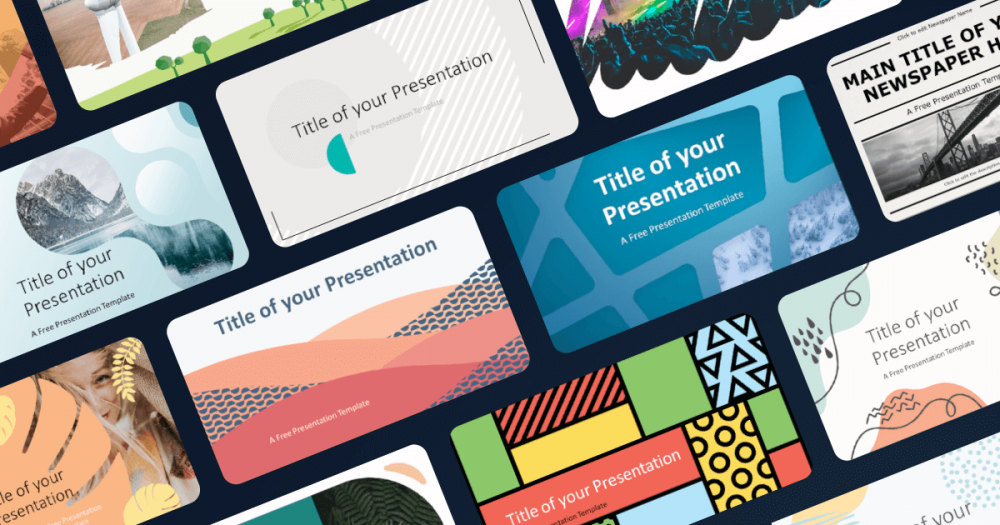
The most fundamental hack is choosing the right starting point. A well-designed PowerPoint template acts like a blueprint—it sets the tone, defines the visual structure, and reduces design decisions down the line. Look for templates that match your brand’s personality and message. Whether it’s minimalist, modern, or corporate, aligning the template style with your content saves time on later edits.
Rather than creating slides from scratch, use templates that offer a variety of pre-built slide types—title slides, image grids, timelines, charts, and content layouts. This allows you to plug in content without reinventing the wheel every time.

2. Use Master Slides Like a Pro
The Slide Master is where most of your time-saving magic can happen. Located under the “View” tab, the Slide Master allows you to set global styles for fonts, colors, and layouts. Instead of editing each slide individually, you make a change once, and it applies to every corresponding layout slide.
For example, if your company updates its brand colors, updating the Slide Master’s color palette will refresh the entire deck instantly. Similarly, standardizing font size and alignment on the Slide Master ensures every new slide you create looks polished by default.
To maximize your efficiency:
-
Create multiple master layouts for different purposes (e.g., text-heavy slides vs. visual-heavy slides).
-
Add placeholder text or icons for easy drag-and-drop content entry.
-
Use consistent margins and alignment to maintain balance.
3. Leverage the Format Painter
The Format Painter is one of PowerPoint’s most overlooked yet powerful tools. With just two clicks, it lets you copy formatting from one object and apply it to another. This includes fonts, colors, borders, and even shapes.
Let’s say you’ve styled a text box with the perfect font size, boldness, and color. Rather than manually recreating that style for each slide, use Format Painter to replicate the design instantly across your entire presentation.
To use it:
-
Select the object with the formatting you want.
-
Click the Format Painter brush icon (found in the “Home” tab).
-
Click on the object you want to format.
If you double-click the Format Painter, it remains active so you can apply formatting to multiple objects in one go.
4. Customize Your Quick Access Toolbar
Navigating menus repeatedly is a time sink. Instead, customize your Quick Access Toolbar—the small menu that sits above the ribbon—for your most-used commands. This can include:
-
Align tools (Align Left, Align Center, Distribute Horizontally)
-
Format Painter
-
Insert Picture
-
Group/Ungroup
-
Save As PDF
To customize it:
-
Click the dropdown arrow on the Quick Access Toolbar.
-
Choose “More Commands.”
-
Add your favorite features from the ribbon into the toolbar for one-click access.
You’ll shave off seconds from repetitive tasks, which quickly adds up to hours over time.
5. Align, Distribute, and Group Objects Quickly
One of the fastest ways to make your slides look professionally designed is to ensure everything is perfectly aligned. Manually eyeballing elements not only takes time but often results in inconsistency.
Instead, use PowerPoint’s alignment tools under the “Arrange” menu or the “Shape Format” tab. These tools let you:
-
Align objects to each other or the slide (center, left, right, top, bottom).
-
Distribute objects evenly, both horizontally and vertically.
-
Group multiple elements together so they move and scale as one.
These tools make it easy to line up icons, create symmetrical layouts, or evenly space bullet points—without wasting time on guesswork.
6. Create Reusable Slide Libraries
Not every presentation has to start from zero. Over time, build a slide library with your most commonly used layouts and content pieces—about us slides, product highlights, team bios, customer testimonials, etc.
Save these slides into a dedicated PowerPoint file or template. When building a new presentation, you can open this library and copy/paste the relevant slides. Better yet, use the “Reuse Slides” feature in PowerPoint:
-
Go to the “Home” tab.
-
Click “New Slide” > “Reuse Slides.”
-
Browse your library and insert slides directly into your current deck.
This approach ensures consistency while drastically cutting down the time needed to prepare new presentations.
7. Embed and Link Charts from Excel
Manually updating charts in PowerPoint every time your data changes is tedious and error-prone. Instead, embed Excel charts and link them to your data source. This allows charts to update automatically when the data changes in Excel.
To link a chart:
-
In Excel, create your chart.
-
Copy it.
-
In PowerPoint, go to “Home” > “Paste” > “Paste Special.”
-
Choose “Paste Link” as an Excel Chart Object.
Now, whenever the Excel data changes, the chart in your presentation will update with a simple refresh. This is particularly useful for recurring reports like monthly metrics or quarterly reviews.
8. Save Themes and Layouts for Future Use
Once you've created a presentation that reflects your branding and structure well, don’t let that work go to waste. Save it as a custom theme so you can apply it to new decks effortlessly.
To save a theme:
-
Click on the “Design” tab.
-
Select “More” (the drop-down arrow) in the Themes group.
-
Choose “Save Current Theme.”
This creates a .THMX file you can use to start future presentations. If you’ve spent time perfecting slide masters, color schemes, and fonts, saving the theme preserves all of it for later use.
9. Use Keyboard Shortcuts Religiously
Memorizing a few essential keyboard shortcuts can save you more time than any single hack. Here are some of the most valuable ones:
-
Ctrl + D: Duplicate the selected slide or object.
-
Ctrl + G: Group selected objects.
-
Ctrl + Shift + G: Ungroup objects.
-
Ctrl + Shift + >/<: Increase or decrease font size.
-
Alt + Shift + Arrow keys: Nudge objects precisely.
-
F5: Start slideshow from beginning.
-
Shift + F5: Start slideshow from current slide.
The more you rely on these shortcuts, the less you’ll need to hunt through menus, helping you move through presentations fluidly.
10. Use SmartArt Wisely
SmartArt is a powerful tool for converting bullet points into visually engaging diagrams. It’s excellent for showing processes, hierarchies, relationships, or lists in a more dynamic way.
Rather than designing these visuals manually, convert existing content into SmartArt:
-
Select your bullet points.
-
Go to the “Home” tab and click “Convert to SmartArt.”
-
Choose a visual style that fits your message.
This can instantly elevate the aesthetic of your slide without investing time in manual design.
11. Optimize Images Efficiently
Large image files slow down your presentation and can cause lag. To avoid this, compress images in PowerPoint:
-
Select an image.
-
Go to “Picture Format” > “Compress Pictures.”
-
Choose desired resolution (Email, Web, Print).
-
Uncheck “Apply only to this picture” if you want to compress all images.
This keeps your file size manageable and speeds up loading and transitions, especially important when sending presentations via email or presenting online.
12. Set Default Shapes and Text Boxes
If you find yourself always changing the font size or color of every shape or text box, set your preferred styles as default. To do this:
-
Format a shape or text box to your liking.
-
Right-click on it and select “Set as Default Shape” or “Set as Default Text Box.”
Now, every time you insert a new shape or text box, it will automatically adopt your preferred settings.
13. Export to PDF Without Losing Quality
If you need to send your presentation or print it as a handout, exporting as a PDF is best. But quality matters—don’t just “Save As PDF.” Go to:
-
File > Export > Create PDF/XPS Document > Options.
-
Choose “High-quality printing” and select “Handouts” if needed.
This ensures your charts and images stay sharp and everything aligns properly.
14. Use One Consistent Font Set
Fonts are one of the most overlooked causes of wasted time. Using inconsistent fonts can wreak havoc on alignment and readability. Choose two complementary fonts—one for headings and one for body text—and set them in the Slide Master.
This will prevent you from having to manually reformat each text box and also ensures visual harmony across your deck.
15. Save Your Presentation as a Template
When you’ve perfected a presentation format you’ll use frequently, save the entire file as a PowerPoint Template. This gives you a reusable framework with your chosen layouts, fonts, colors, and master slides intact.
To do this:
-
Go to File > Save As.
-
Select “PowerPoint Template (.potx)” from the file type dropdown.
Now every new project starts with a polished, time-saving foundation.
Final Thoughts
Time is a precious resource—especially when you're creating presentations under tight deadlines. Mastering these PowerPoint hacks won’t just save you hours of repetitive work; they’ll also elevate the professionalism of your slides. From mastering the Slide Master to using keyboard shortcuts and building slide libraries, each tactic is a small investment that pays big dividends.
Whether you're a marketer, executive, educator, or startup founder, these strategies can streamline your workflow and help you focus more on content and storytelling—and less on formatting chaos. Because when it comes to presentation success, efficiency is just as important as design.
And if you haven’t explored well-crafted PowerPoint Templates yet, it might be the easiest hack of all—start strong, finish faster.





